Master Budgeting with Google Sheets: A Practical Guide
Learn how to master budgeting with Google Sheets. Discover easy templates, formulas, and tips for personalized financial management.

Say you've reached the end of the month, and you’re wondering where all your money went. You’re not alone. Many of us have faced that moment of dread, but the good news is that budgeting can help you avoid it. One of the simplest yet most powerful tools for this is right at your fingertips—Google Sheets.
Why Use Google Sheets for Budgeting?
Google Sheets is like that Swiss Army knife of budgeting tools. It's free, customizable, and accessible from anywhere, whether you’re at home or standing in line for coffee. Plus, it updates in real-time, so if you share the sheet with a partner, you’re always on the same page.
In my experience, Google Sheets offers the flexibility many other tools lack. You’re not confined to the rigid structures of apps, and you can tailor your budget just the way you like it. This flexibility ensures that your budget reflects your unique financial situation—a bit like having a flexible budgeting example tailored just for you.
Setting Up Your Google Sheets Budget
- Start with the Basics: Create columns for income, expenses, and savings. Each section should have different categories. For example, under expenses, you could have groceries, rent, utilities, and so on.
- Use Formulas to Automate: The beauty of Google Sheets lies in its ability to automate calculations. Use simple formulas like
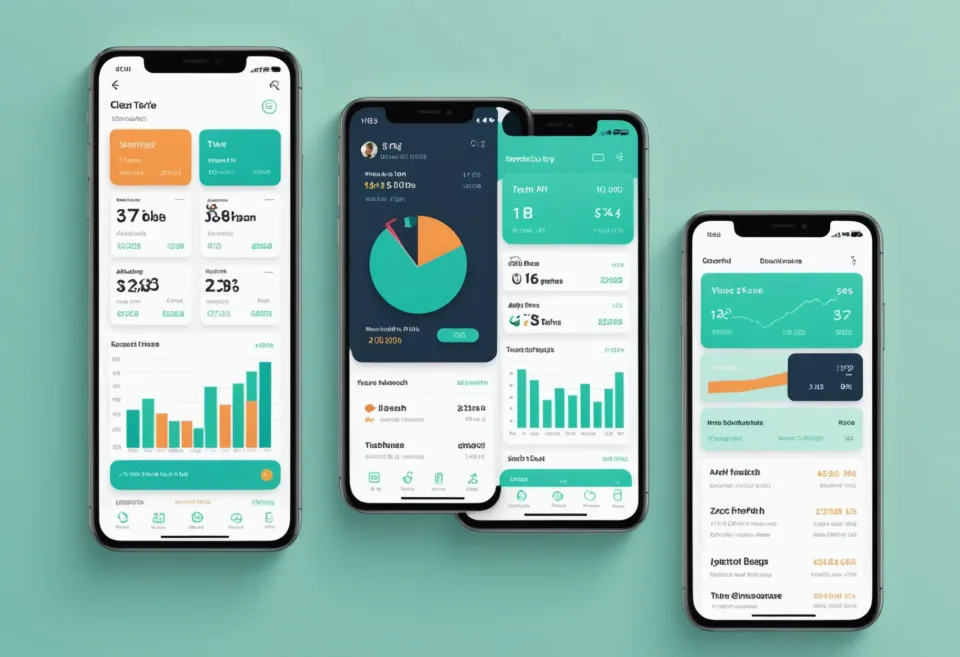
=SUM()to total your expenses or=A-Bto see what's left. - Visualize with Charts: A pie chart can quickly show you where most of your money is going. This visual cue is a great motivator to adjust spending habits.
- Track Your Progress: At the end of each month, update your sheet with actual figures to compare against your budgeted amounts. This is where the real learning happens.
How do I create a budget template in Google Sheets?
Creating a budget template is easier than you think. Google Sheets offers several pre-made templates that you can customize to your liking.
- Access Templates: Open Google Sheets, click on "Template Gallery," and select a personal budget template.
- Customize: Adjust the categories and amounts to fit your needs. Maybe you want to add a section for hobbies or pet expenses.
- Set Goals: Create a column for savings goals to keep your eye on the prize, whether it’s a vacation or an emergency fund.
- Link to Other Resources: Consider integrating other tools like a budgeting dashboard for a comprehensive view of your finances.
How much should I budget for groceries?
Budgeting for groceries can be tricky. The "right" amount depends on several factors like family size, dietary needs, and location. However, a general guideline is to allocate between 10-15% of your monthly income.
For example, if you earn $3,000 a month, consider setting aside $300-$450 for groceries. Keep an eye on spending by updating your Google Sheets regularly. If you find yourself going over, it might be time to adjust your shopping habits.
Can I share my Google Sheets budget with others?
Absolutely, and it's one of Google Sheets’ best features. By sharing the document with your spouse or roommates, you can keep everyone aligned and avoid awkward money conversations.
Click the "Share" button, enter email addresses, and decide whether others can edit or just view the sheet. This is particularly useful for managing shared expenses, like rent or household bills.
Frequently Asked Questions
What are the benefits of budgeting with Google Sheets?
Google Sheets is free, highly customizable, and accessible from anywhere. It allows for real-time updates, easy sharing, and the ability to integrate with other tools.
How can I ensure my Google Sheets budget is secure?
Ensure you only share your sheet with trusted individuals. Google’s privacy settings allow you to control who can view or edit your sheet. Always use strong, unique passwords for your Google account.
Can Google Sheets be used offline for budgeting?
Yes, you can use Google Sheets offline by enabling the offline mode. However, changes made offline will only sync once you’re back online.
What’s a simple formula for tracking expenses in Google Sheets?
A simple =SUM() formula can add up expenses in a column. For instance, if your expenses are listed in column B from row 2 to row 10, use =SUM(B2:B10).
How does Google Sheets compare to other budgeting apps?
Google Sheets offers unmatched flexibility. While it lacks some of the automation of dedicated apps, it’s free and highly customizable. For more insights, check out this comparison of budgeting apps.
If you want something that handles the heavy lifting automatically, KlutterAI does a fantastic job of integrating data from multiple sources, giving you a clearer snapshot of your finances.