Budget Planner for iPad: How to Turn Your Tablet Into a Money Command Center
Turn your iPad into a powerful budget planner with the right apps, setup, and weekly ritual. Learn how to track spending and plan finances on your tablet.
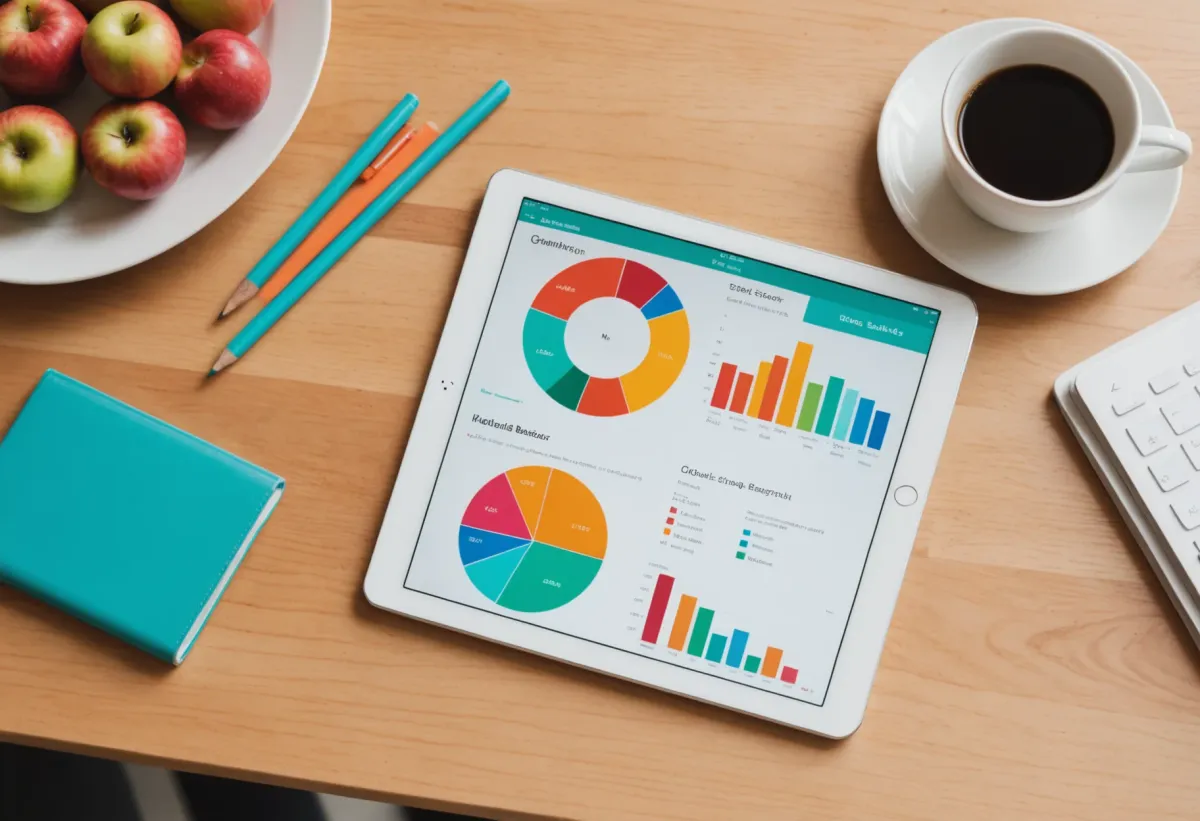
I bought my iPad thinking I'd use it for Netflix and the occasional email. Three years later, it's become the single most important tool in my financial life. Not because of some fancy app I paid $200 for, but because I figured out how to turn it into a proper budget planner for iPad that actually fits how I manage money.
The thing about budgeting on an iPad is that it hits this sweet spot between your phone (too small, too easy to ignore) and your laptop (too much of a production to open). Your iPad sits on the kitchen counter. It's there when you're paying bills. It's there when you're wondering if you can afford that weekend trip. And that constant visibility? It changes everything about how you interact with your money.
Why the iPad Makes an Exceptional Budget Planner
I've tried budgeting on paper, spreadsheets, phone apps, and desktop software. Each has its place, but the iPad does something none of the others can: it makes budgeting feel less like a chore and more like checking a dashboard.
The screen size matters more than you'd think. When you can see your entire monthly budget without scrolling, you process information differently. Your brain can hold the whole picture — income, fixed expenses, variable spending, savings goals — all at once. That's not possible on a phone where you're constantly swiping between screens.
Then there's the Apple Pencil factor. I know, I know — do you really need a stylus for budgeting? Honestly? Yes. Being able to circle problem areas, jot quick notes next to transactions, or sketch out a rough calculation changes the experience. It feels more active, more engaged. Like you're actually working with your money instead of just looking at it.
The portability matters too. I do my weekly budget check-ins on Sunday mornings with coffee. Sometimes at the kitchen table, sometimes on the couch, occasionally at a coffee shop. Try doing that with a desktop spreadsheet.
Setting Up Your iPad as a Dedicated Budget Planner
Here's where most people go wrong: they download one budgeting app and call it a day. That's like buying a gym membership and expecting muscles to appear. Your iPad budget planner needs a system, not just software.
Start with your home screen. Create a folder called "Money" or "Budget" — whatever you'll actually tap on — and put it on your main screen. Not buried three swipes to the right. Right there, staring at you. Inside that folder, you want three types of tools:
A tracking app for day-to-day expenses. This is where every coffee, every grocery run, every impulse Amazon purchase gets logged. If you're not sure which to use, I compared the best budget app for iPad in 2025 and found some clear winners depending on your budgeting style.
A planning tool for the big picture. This could be a spreadsheet app (Numbers works great on iPad), a dedicated budgeting app with planning features, or even a simple note-taking app where you map out your monthly allocations. I'm a fan of using flexible budget examples as starting templates rather than building from scratch.
A visualization tool for seeing patterns. Charts, graphs, spending breakdowns by category. Your brain processes visual information faster than numbers in a column. Some apps include this; others you'll need to add separately.
The Widget Setup That Actually Works
iPadOS widgets are underrated for budgeting. Set up your Today View (swipe right from the home screen) with:
- Your bank account balance widget
- A budget remaining widget from your tracking app
- A calendar widget showing upcoming bill due dates
Every time you pick up your iPad, you see your financial snapshot without opening anything. That passive awareness is surprisingly powerful. After a month of this, you'll find yourself naturally spending less because the numbers are always in your peripheral vision.
How Much Does a Good iPad Budget Planner Setup Cost?
This is the question I get asked most, and the answer ranges from $0 to about $100/year depending on how you set things up.
The free route: Apple's built-in Numbers app is genuinely capable. Combine it with a free tracking app and your bank's app, and you have a functional system. It requires more manual work, but it costs nothing.
The mid-range approach ($5-15/month): Premium budgeting apps like YNAB or Copilot give you automation, bank syncing, and better reporting. This is what most people who stick with budgeting long-term end up using. The time savings alone usually justify the cost.
The automation-heavy approach: If you want your budget to basically run itself — transactions categorized automatically, bills tracked without manual entry, spending patterns analyzed — you're looking at combining a couple of premium services. KlutterAI handles a lot of this automatically by connecting to your accounts and doing the categorization work that usually eats up your Sunday mornings.
Personally, I spent years on the free route before realizing my time was worth more than the $10/month I was "saving." The hours I spent manually categorizing transactions and reconciling accounts added up to way more than $120/year in opportunity cost.
Building Your Weekly Budget Review Ritual
Having the tools set up is step one. Using them consistently is where most people fail. Here's the ritual that's worked for me and dozens of readers who've adopted it:
Sunday mornings, 15 minutes. That's it. Not an hour-long deep dive. Not a stressful end-of-month panic session. Just 15 minutes, same time each week, with your iPad and coffee.
Minutes 1-5: Open your tracking app. Scan the past week's transactions. Categorize anything that didn't auto-categorize. Flag anything that looks wrong.
Minutes 6-10: Check your budget categories. Are you on track? Over in any areas? Under in others? If you're 80% through the month but only 50% through your grocery budget, nice — you've got breathing room. If you're 80% through the month and 95% through your dining budget, time to cook more this week.
Minutes 11-15: Look ahead. Any big expenses coming? Bills due? Adjust your spending plan accordingly.
This works because it's short enough to actually do consistently. Miss a week? Fine, next Sunday takes 20 minutes instead of 15. The system doesn't collapse because you skipped once.
Making the iPad Part of the Ritual
Here's a trick that sounds silly but works: keep your iPad in the same spot for budget reviews. Mine lives on a small stand on my kitchen counter. When I see it there Sunday morning, my brain automatically thinks "budget time." That environmental cue makes the habit stick.
Some people charge their iPad in their home office and do reviews there. Others use it at the dining table. The specific location doesn't matter — the consistency does.
The Best Features to Look for in iPad Budget Planning Apps
Not all budgeting apps translate well to iPad. Some are clearly designed phone-first with the iPad version as an afterthought. Here's what separates the good ones:
True iPad optimization. The app should use the full screen, not just stretch a phone interface. Sidebar navigation, split-view support, and keyboard shortcuts all signal that developers actually thought about iPad users.
Apple Pencil support. Even basic annotation capabilities transform how you interact with your budget. Being able to circle a suspicious charge or draw an arrow connecting related expenses adds a tactile element that improves engagement.
Offline functionality. You should be able to review your budget on an airplane or in a coffee shop with spotty wifi. Apps that require constant internet connection are frustrating on a device you'll use in various locations.
Export options. Eventually, you'll want to pull your data into a spreadsheet for deeper analysis, or share a summary with a partner. Good apps make this easy; bad ones trap your data.
I've found that apps designed specifically for tracking personal expenses often have better iPad implementations than all-in-one financial dashboards. Something about the focused purpose leads to better design decisions.
Common iPad Budgeting Mistakes (And How to Avoid Them)
After helping hundreds of people set up iPad budget planners, I've seen the same mistakes repeatedly:
Over-complicating the system. You don't need five apps, three spreadsheets, and a custom Shortcuts automation. Start with one tracking app and one planning document. Add complexity only when you hit a specific limitation.
Ignoring the iPad's strengths. If you're just replicating what you did on your phone, you're wasting the iPad's potential. Use the screen real estate. Use the Pencil. Use widgets. Otherwise, why bother?
Setting up and forgetting. The best budget planner for iPad is useless if it sits in a drawer. Build the ritual. Make it visible. Connect it to an existing habit (Sunday coffee, for example).
Expecting perfection. Your first month will be messy. Categories will be wrong. You'll forget to log things. That's fine. The goal isn't a perfect record — it's awareness of where your money goes. Even a 70% accurate budget teaches you more than no budget at all.
Frequently Asked Questions
What is the best free budget planner app for iPad?
Numbers (Apple's spreadsheet app) combined with a simple budget template is genuinely the best free option. It's powerful, iPad-optimized, and works offline. For something more automated, several tracking apps offer free tiers with limited features that work well for basic budgeting.
Can I use Apple Pencil for budgeting on iPad?
Yes, and it's one of the iPad's biggest advantages for budgeting. You can annotate transactions, sketch out budget calculations, and mark up reports in apps that support it. Even just circling problem areas during your weekly review makes the process more engaging.
How do I sync my budget planner across iPhone and iPad?
Most modern budgeting apps sync automatically via iCloud or their own cloud service. Look for apps that specifically mention cross-device sync in their features. The best ones update in real-time, so a transaction logged on your iPhone appears instantly on your iPad.
Is an iPad better than a laptop for budgeting?
For most people, yes. The iPad's portability means you'll actually use it regularly, and the touchscreen makes interacting with your budget feel more intuitive. Laptops are better for heavy spreadsheet work or complex financial modeling, but for day-to-day budget management, the iPad wins on accessibility.
How often should I check my budget on iPad?
Weekly is the sweet spot for most people. Daily is overkill and leads to burnout. Monthly means problems compound before you catch them. A 15-minute weekly review keeps you aware without becoming obsessive about every transaction.
Making It Stick
The gap between people who successfully budget and people who don't isn't intelligence or income — it's consistency. Your iPad budget planner only works if you actually use it.
Start this Sunday. Spend 30 minutes setting up your system — one tracking app, one planning document, widgets configured. Then commit to 15 minutes every Sunday for the next month. Just four sessions.
By week four, you'll know more about your spending patterns than you've ever known. You'll catch that subscription you forgot about. You'll see exactly how much those "small" coffee purchases add up to. You'll have actual data instead of vague anxiety about money.
And honestly? It feels good. Knowing where your money goes, having a plan for it, watching your savings grow because you're actually paying attention — that's worth the price of whatever app you choose and the 15 minutes a week it takes to maintain.
Your iPad is already sitting there. Might as well make it useful.