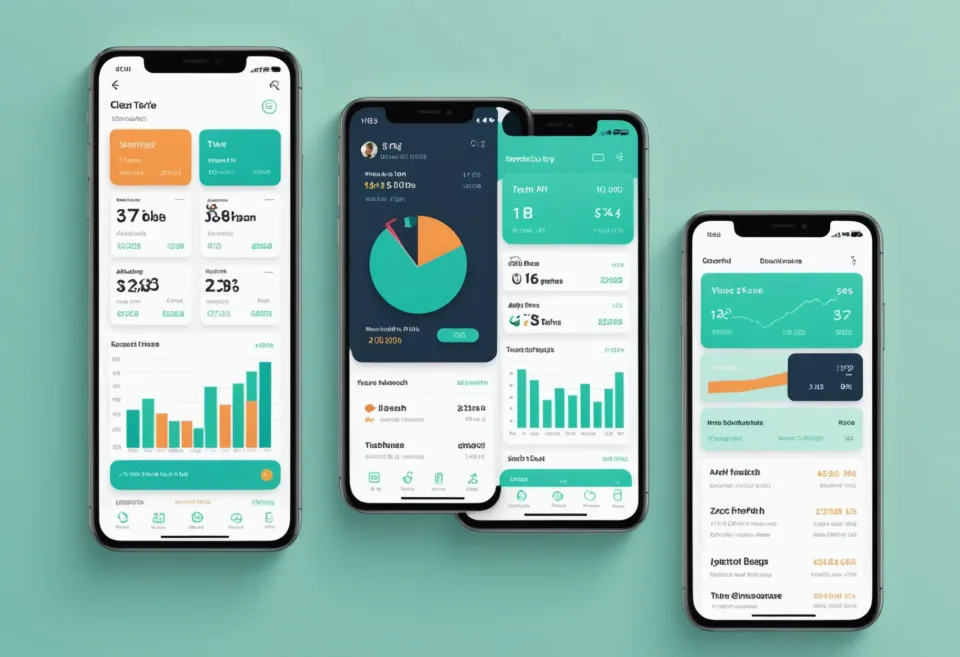
Master Your Finances: Spending Tracker Excel Template
Master your finances with a spending tracker Excel template. Learn to set up, track, and adjust your budget with ease. Excel makes budgeting simple.
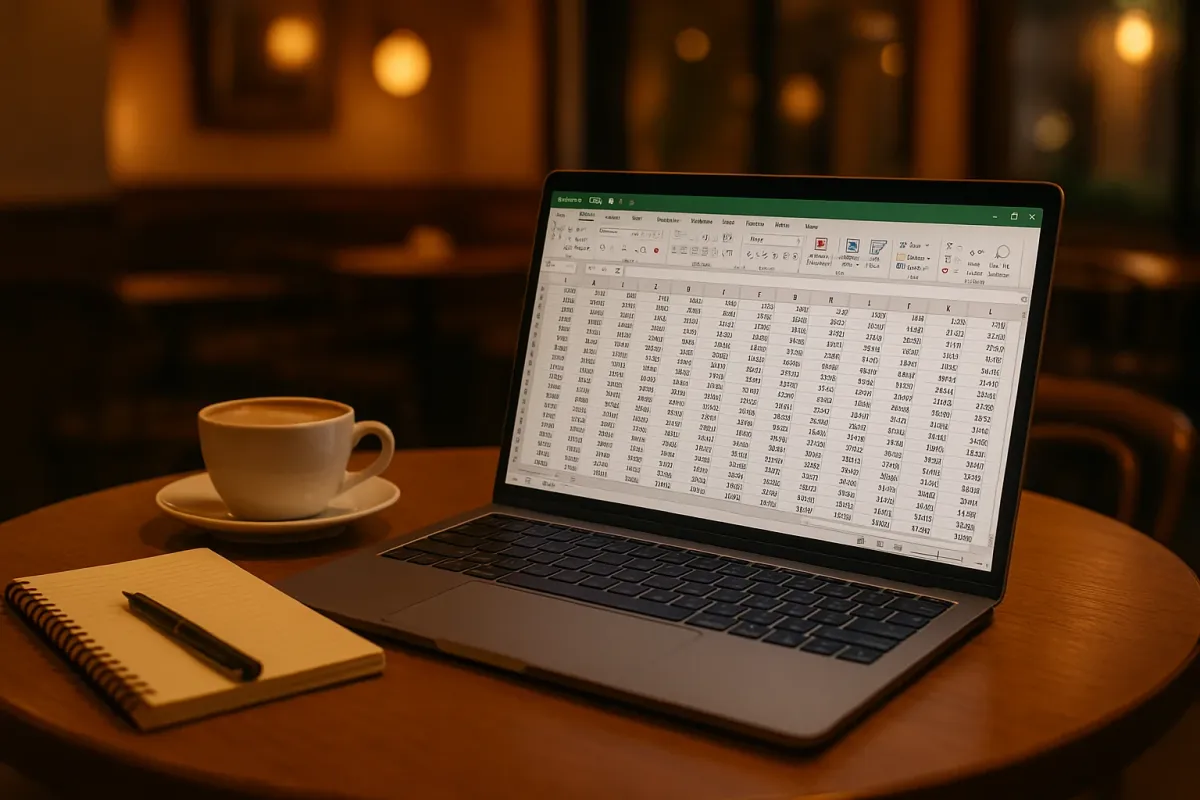
Why Use a Spending Tracker Excel Template?
Keeping tabs on where your money goes each month is a bit like trying to remember all the characters in a Russian novel—there are way too many, and they all have complex names. That's where a spending tracker Excel template comes in handy. It’s like having a trusty sidekick who remembers all the small details so you can focus on the bigger picture—like finally saving up for that trip to Italy.
I've tried everything from old-school pen and paper to fancy apps. Yet, time and again, I come back to Excel for its versatility and simplicity. It’s like the Swiss Army knife of budgeting tools. You can customize it to fit your financial needs perfectly. Plus, it's easier to use than you might think, especially if you start with a template.
How to Set Up a Spending Tracker in Excel
Creating your own spending tracker in Excel is like making a pizza: you start with a base (or template) and add toppings (or features) as you like. Here’s a step-by-step guide to whip up your own financial masterpiece.
1. Choose or Create Your Template
The first step is picking a template that fits your style. You can find some amazing free templates online, or you can build your own. I recommend starting simple. List categories such as housing, utilities, groceries, and transportation.
If you prefer a pre-made solution, there are many budgeting apps with flex options that offer Excel exports, which can serve as a great starting point.
2. Input Your Income and Expenses
Once you have your template, fill in your monthly income and set aside categories for each type of expense. Remember to include everything—subscriptions, dining out, and that monthly coffee shop splurge.
I like to input expenses as soon as they occur, but if you're more of a weekly batch processor, that's cool too. Consistency is key.
3. Track and Adjust
At the end of each month, review your spending habits. Are you constantly going over on dining out but underspending on groceries? Maybe it's time for a little flex budgeting. The beauty of Excel is how easily you can adjust and rearrange categories to better fit your lifestyle.
Key Features to Include in Your Excel Tracker
A spending tracker isn’t just about listing expenses; it’s about gaining insights. Here are features that can elevate your Excel sheet from basic to brilliant.
Pivot Tables
These are your best friends for summarizing data. With pivot tables, you can quickly see where the majority of your money is going or which months you tend to spend more.
Graphs and Charts
Visuals make understanding your spending a lot easier. A bar graph showing your monthly spending trends or a pie chart of spending by category can offer insights at a glance.
How Much Time Should You Spend Tracking Expenses?
You might be wondering how often you need to update your tracker. Daily? Weekly? In my experience, it depends on your personal habits and goals. If you’re looking to cut back on unnecessary purchases, a daily review might be best. Otherwise, a weekly update is sufficient for most people.
Personally, I’ve found a nice rhythm with a Sunday evening budgeting session. It’s just me, my Excel sheet, and a cup of chamomile tea. It’s all about finding a routine that doesn’t feel like a chore.
Frequently Asked Questions
What is a spending tracker Excel template?
A spending tracker Excel template is a pre-formatted spreadsheet that helps you track and manage your spending. It typically includes sections for income, various expense categories, and special columns for savings goals.
How do I create a spending tracker in Excel?
Start by listing all your income sources and expense categories. Use columns to enter each transaction, and then employ Excel features like formulas, charts, and pivot tables to analyze your spending patterns.
Is an Excel spending tracker better than an app?
It depends on your preferences. Excel offers a high level of customization and can be a cost-effective option, especially if you’re comfortable with spreadsheets. Apps might offer more convenience and automation, which is a huge plus for some.
How often should I update my spending tracker?
Many people find success with weekly updates, but if you’re working on curbing spending, daily updates might be more effective. Choose a routine that fits your lifestyle and keeps you engaged.
If you want something that handles this automatically, KlutterAI does a fantastic job of integrating your financial data with minimal effort.
Wrap-Up
Ultimately, a spending tracker Excel template is a powerful tool in anyone's financial toolkit. Whether you're a spreadsheet wizard or a total newbie, you can tailor Excel to meet your budgeting needs. If you're ready to take control of your finances without breaking a sweat, give it a shot. And remember, consistency is key—stick with it, and you'll be amazed at the insights you uncover.