How to Use Google Sheets as an Expenses Tracker
Learn to use Google Sheets as an expenses tracker. Get tips, setup advice, and automate your budgeting with ease.

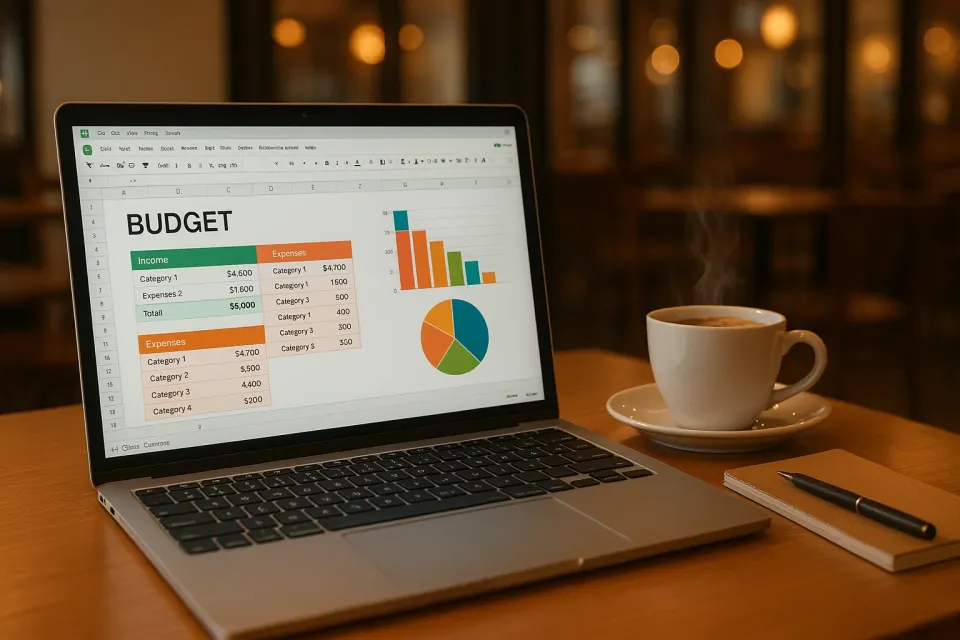
Keeping tabs on your expenses can feel like trying to catch water with your hands. Trust me, I've been there. You think you've got a hold on your budget, and then—bam!—an unexpected expense throws you off course. That's where using Google Sheets as an expenses tracker comes in handy. It's not just free; it's also highly customizable and accessible from any device. Let me walk you through how you can set up your very own expenses tracker using Google Sheets.
Why Use Google Sheets for Tracking Expenses?
Google Sheets offers unmatched flexibility and accessibility, especially if you're someone who likes to tinker and adjust things to fit your specific needs. Unlike apps that might restrict you to predetermined categories or display options, Google Sheets lets you create an expenses tracker that's truly your own.
The beauty of Google Sheets is its spreadsheet nature, allowing you to input and manipulate data freely. This means you can create detailed charts and graphs to visualize your spending habits. Want to track your spending on coffee versus groceries? You got it!
Setting Up Your Expenses Tracker on Google Sheets
Step 1: Design Your Layout
When you're setting up your expenses tracker, think about what you want to track. Is it just the big stuff, or do you want to know every time you buy a latte? A good starting point is to have columns for Date, Description, Category, Amount, and Payment Method. A simple layout makes it easier to enter data on the go.
Step 2: Use Functions for Automatic Calculations
Here's where Google Sheets shines—its functions. Use the SUM function to automatically calculate your total spending for the month. If you want to get fancier, try using pivot tables to analyze your expenses by category. This can help you see where your money is going at a glance, and it’s akin to using an income expense spreadsheet but with your personal twist.
Step 3: Add Conditional Formatting
A little flair with conditional formatting can go a long way in visualizing your spending. Set thresholds for different categories and use color-coding to highlight when you've exceeded your limit. It’s a great way to visually cue yourself into making smarter financial choices.
How Much Detail Should You Include in Your Google Sheets Expenses Tracker?
This is a common question, and it really depends on your personal finance goals. If you're someone who enjoys diving deep into the numbers, track everything down to the last penny. On the other hand, if you find that overwhelming, start by focusing on key spending areas like groceries, dining out, and transportation.
In my experience, tracking too many small transactions can become cumbersome. Start simple and add more details as you become comfortable. It's a process, and like I've mentioned in my creating a picture of budget success guide, your budget should adapt to your life, not the other way around.
Can Google Sheets Automatically Pull Data?
Yes, it can, and here’s how. Google Sheets can integrate with a myriad of tools that pull data from your bank accounts. For the DIYers, scripts and add-ons can automate the data import process. If coding isn't your forte, platforms like KlutterAI can help automate the mundane data entry.
Frequently Asked Questions
How do I make an expenses tracker in Google Sheets?
Start by creating columns for Date, Description, Category, Amount, and Payment Method. Use Google Sheets functions like SUM for calculations and add conditional formatting to visualize data.
Is there an app that works with Google Sheets?
Yes, Google Sheets can integrate with many apps via add-ons or scripts, and KlutterAI offers tools that automate data entry and sync with your financial accounts.
How do I categorize expenses in Google Sheets?
Think about your major spending areas and create custom categories. You can use Google Sheets’ data validation feature to create a drop-down menu for easy categorization.
Can Google Sheets track monthly expenses automatically?
While Google Sheets itself doesn't automatically track expenses, you can set up integrations with bank accounts or use platforms like KlutterAI for automation.
Conclusion
Using Google Sheets as an expenses tracker gives you the flexibility to customize your budgeting to fit your needs. It’s both a simple and powerful tool for those who appreciate having control over their financial data. If you want something that handles this automatically, KlutterAI does just that. So next time you wonder where your money went, you'll have the answers right at your fingertips.